


Brak produktów w koszyku.
Why AR glasses show no picture over USB-C
Why AR glasses show no picture over USB-C
You plug in the glasses, but your phone screen never appears. Before buying another cable, establish whether the device can send video, which route it should take and where the picture disappears. This sequence gives each troubleshooting attempt a clear purpose.
Check whether the port can send video
Find the exact phone or computer model in its manufacturer's documentation, then read the description of the port you are using. Look for video output over USB-C, usually described as DisplayPort Alt Mode. A specification that lists charging and data transfer does not confirm video support. On a laptop, also check which physical socket the description refers to.
DisplayPort over USB-C can carry video through the same connector used for data and power. These are separate capabilities. VESA explains that a display connected to a USB-C port without DisplayPort support will not receive a picture. Source: DisplayPort FAQ.
Even closely related phones can differ. Apple lists iPhone 16 models as supporting an external display but explicitly excludes iPhone 16e. “An iPhone with USB-C” therefore is not a precise enough device description. Source: connecting devices to an iPhone.
This guide covers display glasses that receive video from another device. We use XREAL One Series instructions for the examples involving buttons and on-screen warnings. Glasses with their own operating system or a separate computing unit may need a different setup.
Write down the complete connection
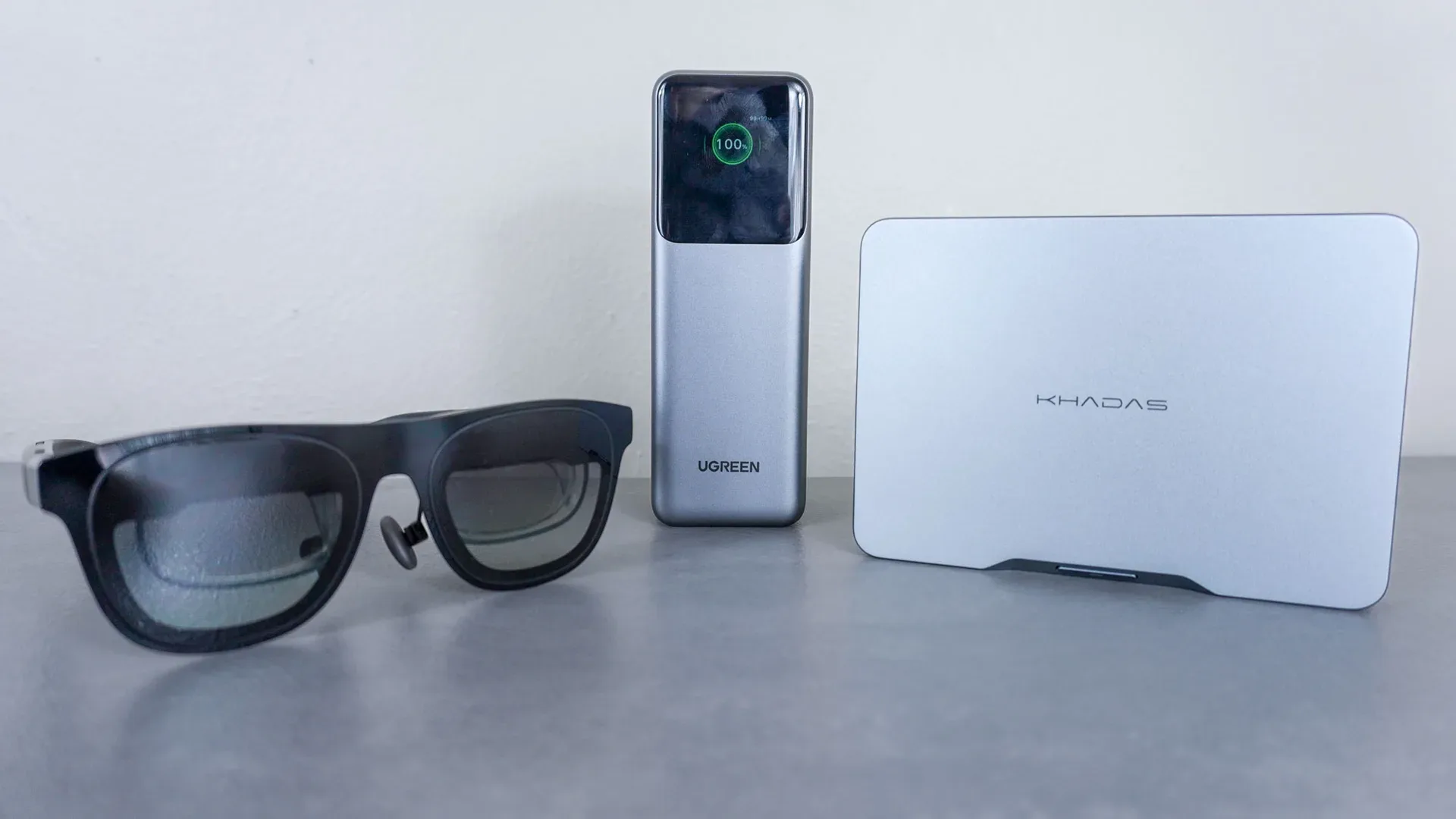
Before buying another adapter, list the components in order: source device, output port, cable, adapter, power source and glasses. Expand “laptop → hub → glasses” with actual model names and port labels.
Two similar abbreviations matter here. DP means DisplayPort in this context; PD means Power Delivery. A PD charging specification does not establish video output capability. If a dock’s USB-C socket is described only as a power input, do not treat it as an output for your glasses. Missing documentation remains an unanswered question, even if another port on that dock supports a monitor.
Add the source device's operating system version and the glasses' firmware version to your notes. Record the fault before updating everything at once, or it will be difficult to tell which change helped. Follow the manufacturer's update procedure if an update is required during troubleshooting.
Try a direct connection first
If the device has confirmed DisplayPort output over USB-C, connect the glasses using the cable supplied for that model. Leave any extension cable or extra dock out of this attempt. Start with the desktop or home screen, then open the application you intend to use.
XREAL documents direct connections between One Series glasses and USB-C devices that support DP. These glasses also draw power from the connected device and have no internal battery. Connecting only a charger therefore does not test video output. Source: XREAL One connections.
Record the result for this configuration. If the picture works without the dock, add the dock back and compare. Replacing the phone, dock and cable together might restore the picture, but it will not reveal which part caused the fault.
Separate startup problems from missing video
For XREAL One Series, three observations help narrow the problem:
- No logo appears. Check that the cable is seated properly and use the manufacturer’s cable. Then try another device with confirmed DP output.
- The logo appears, followed by a video warning. The glasses have not detected the DP signal successfully.
- There is no warning, but no screen is in view. In Anchor mode, holding the X button recentres the display.
These are model-specific steps from XREAL’s black-screen guide. Buttons on other glasses may behave differently.
After trying another device, record both model names and both outcomes. “Works on computer A, fails on phone B, using the same cable” gives support more to work with than “sometimes works”. If the glasses also fail to start in the recommended configuration, send that description to the seller or manufacturer.
With HDMI, check direction and power
For a computer or console with an HDMI output, the signal must travel from the source device’s HDMI output to the glasses’ USB-C input. An adapter used to connect a USB-C laptop to an HDMI television performs the opposite job. Matching connectors alone do not prove that it works in reverse.
XREAL's PlayStation and Xbox instructions call for HDMI-to-DP conversion together with power for the glasses. Check both requirements in the adapter's documentation, along with support for your particular glasses. Source: XREAL, PS and Xbox connections.
Copy the input and output labels into your notes, including any separate power connector. A complete connection diagram is more useful before a purchase than trying to identify an adapter's function from its product photograph.
If the desktop works, investigate the application
A visible desktop followed by a black screen when a film opens is a different symptom from having no picture at all. Apple describes two application-related problems when using an adapter: incompatibility with that adapter and the requirement for HDCP protection on some video content. Record the app, the content and any message. A working desktop does not guarantee that every video service will work. Source: Apple, help with AV adapters.
Do not include account credentials in a support request. Explain when the picture disappears and whether the home screen returns after closing the app.
Keep one record for each attempt
Use a separate entry each time you change a component:
- Device and port: exact model, socket used and a link to its video-output specification.
- Connection: cable, adapter and power supply model names, rather than simply “USB-C”.
- Glasses: model, firmware version and display mode.
- Symptom: startup logo, warning, desktop and picture in the selected app.
- One change and its result: what you replaced, what stayed the same and whether the symptom changed.
This record makes it easier to identify the missing component. When choosing new AR glasses, start with the device that will provide the picture. Select the glasses around that complete connection and the application you actually plan to use.

Author
Dariusz Walczak
Dariusz Walczak is responsible for marketing at Zenith XR. He manages the brand's communications and blog content.
Need specific advice?
Choose the right XR equipment for your needs
Tell us how you plan to use XR headsets. We will help you choose the right equipment for home, school or business.



Add comment