


Brak produktów w koszyku.

VR without internet: test your offline training setup
VR without internet: test your offline training setup

The content is downloaded and the headsets are charged, but the app asks for a login when you arrive. A rehearsal can reveal that problem before the session. Run the full exercise after restarting the equipment, using the network conditions expected at the venue.
“Offline” describes two different conditions
At an off-site training session, you might lose internet access while the local Wi-Fi network keeps working. Alternatively, there may be no Wi-Fi network at all. Those are different operating conditions for a VR headset.
Without internet access, devices may still communicate with a local router, computer and instructor’s display. Switching Wi-Fi off removes that connection too. A useful test therefore needs more detail than “the headsets work offline”: which exercise, on which device, using which connection, and for how long?
This procedure prepares a specific training session. It is not a list of applications guaranteed to work without a network. Each result applies to the tested app version, account and configuration.
Identify the operations that need a connection
For every application, record five operations: first launch, opening the exercise, the instructor’s screen view, saving the result and subsequent synchronisation. Establish whether each needs internet access, a local network, a PC connection or none of these.
If the supplier does not specify this, ask a concrete question: “After restarting the headset without internet access, can I open exercise X using account Y and save the result?” Saying that an application is installed locally does not resolve login, scene downloads or licence checks.
Treat device management separately. HTC describes core offline functions in VIVE Business+ Console, while a full local-network service is a separate arrangement. Neither statement establishes that every application installed on the headset will work offline. Source: VIVE Business+.
Prepare the complete exercise while connected
Launch each application on every headset. Open the specific scene, video or exercise planned for the session. Download and open its files rather than stopping at the icons in the library.
For PC VR through Steam, prepare the computer as well. Valve recommends completing updates and launching games while connected before switching to Offline Mode. Valve states that games requiring an active connection or an external launcher will not work in Offline Mode. Source: Steam Offline Mode instructions.
Do not relax the school’s or company’s account protections just to pass the test. If offline preparation requires saved login information, the administrator needs to know which account and device will hold it. Test a configuration that is actually approved for use at the training venue.
Test one: keep the local network, remove internet access
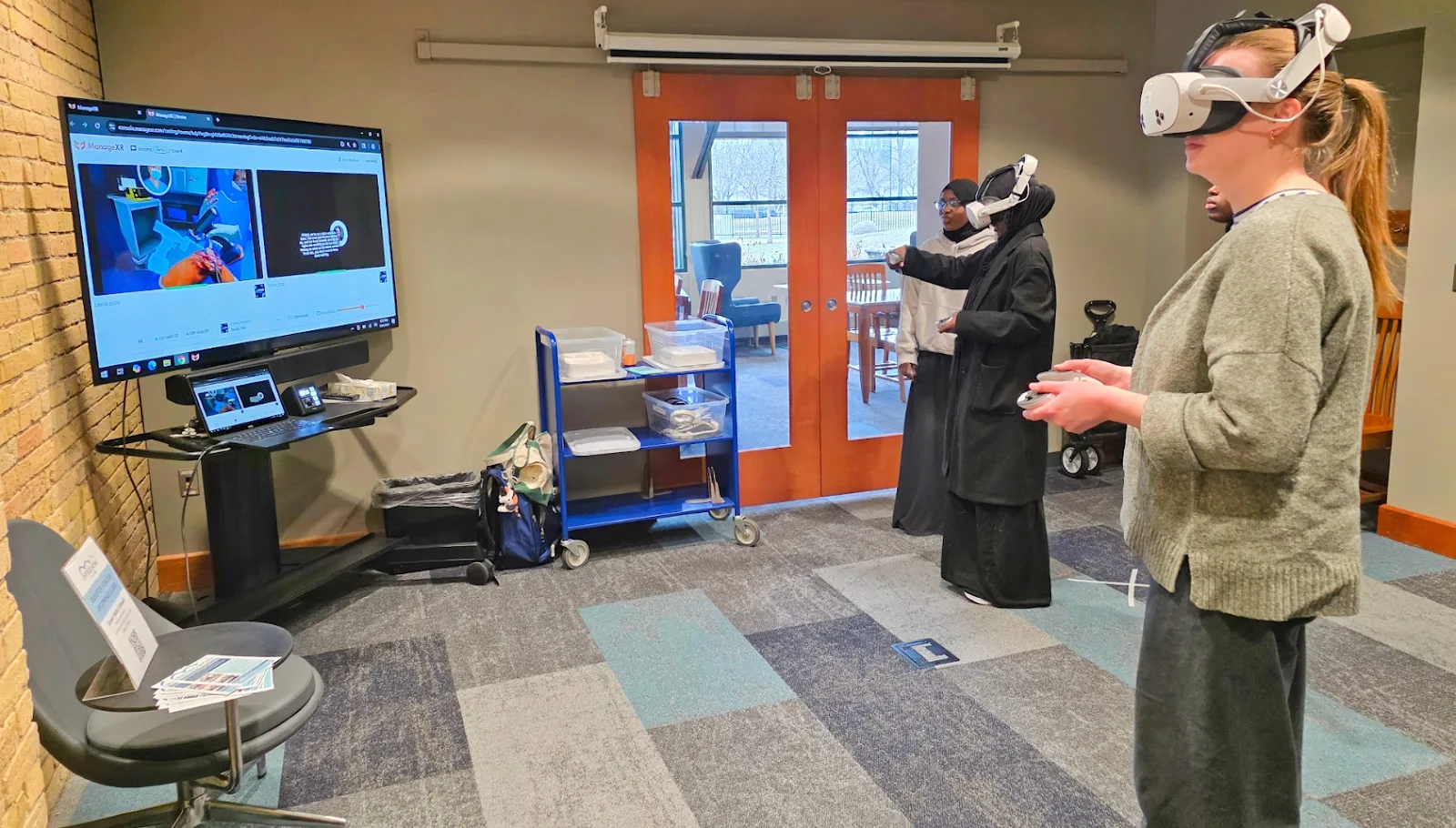
Use a dedicated test router, or arrange for internet access to be removed only from the training equipment. Keep the local connections between headsets, computer and display. Do not disconnect a network other people are using.
Turn off any phone hotspot that the equipment might automatically join. Then shut down and restart the headsets and any computer included in the setup. Disconnecting the internet while an application is already open is a weaker test: it may have downloaded its content or established its session beforehand.
Complete the exercise from start to finish. Save a result, close the application and reopen it. If the instructor needs a live screen view, include it in the same test. Local communication may remain available in some configurations, but connecting to the router alone does not demonstrate that it works.
Test two: switch Wi-Fi off
This condition matters when the headsets must operate without a router. Turn off Wi-Fi on the device and start the exercise again. If the setup relies on wireless streaming from a PC, removing Wi-Fi changes an essential connection. It is not equivalent to testing an application that runs on the headset itself.
In the VIVE Focus Vision Kiosk instructions, “Offline only” means Wi-Fi is disabled. That is different from retaining a local network with no internet connection. Source: VIVE Focus Vision Kiosk setup.
Confirm that a participant can start the task, return to its beginning and hand the headset to the next person. If Kiosk mode restricts settings, the instructor’s procedure should include the approved way to leave it. Keep administrator passwords out of instructions distributed to participants.
Save a result, then reconnect
Separate saving a local file from sending a result to a server. Open Brush documents saving a sketch on the device and publishing it to external services as different actions. A training plan should not hide both behind the single word “save”. Source: saving and sharing in Open Brush.
Create a test file without participant data, close the application and reopen the file after a restart. Only then restore the connection. If the application synchronises results, find that specific result in the instructor’s dashboard. Look for duplicate entries, missing content and any version-conflict message.
Do not delete the local copy simply because a synchronisation icon disappears. First open the result in the place where the instructor will use it later.
Restart after the planned interval
If equipment will be prepared the day before departure, try another start the following day while still disconnected. This reflects the intended schedule more closely than several restarts within five minutes.
It does not prove that the application will remain available indefinitely. Login sessions and application entitlements may have their own renewal conditions. Do not change the device clock to simulate a week: changing the time can cause faults that normal disconnected use would not.
Repeat the affected steps after an app update, account change or change to device management. Keep the earlier result so that the behaviour of the same setup can be compared before and after the change.
Give the instructor a one-page startup guide
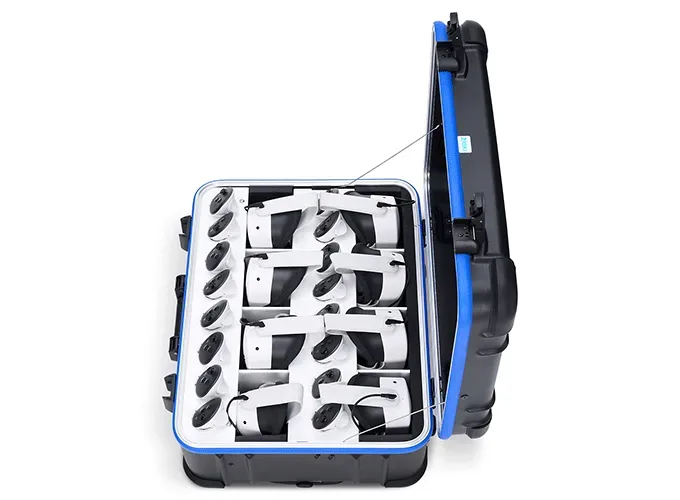
Include a one-page startup sheet with your VR training equipment, showing device numbers, application names and startup order. Include the location of downloaded material, how to start a fresh session and what to do if a connection is unavailable.
Record two separate results for each operation below: one with local Wi-Fi working but no internet connection, and one with Wi-Fi switched off entirely.
- Launch after a restart: record whether the application opens and note its version.
- Complete the exercise: record the outcome and the exact stage at which any problem occurs.
- Save and reopen: record the test filename and whether it opens successfully.
- Instructor’s screen view: note whether the view is available. If the session does not require it in that mode, write “not applicable”.
Test the fallback material under the same conditions. This might be a local video, model or alternative exercise suitable for the session. If the main application stops at a login screen, the instructor then has a rehearsed next step instead of having to improvise a technical fix in front of a waiting group.

Author
Dariusz Walczak
Dariusz Walczak is responsible for marketing at Zenith XR. He manages the brand's communications and blog content.
Need specific advice?
Choose the right XR equipment for your needs
Tell us how you plan to use XR headsets. We will help you choose the right equipment for home, school or business.




Add comment